Content
The Content tab in the back office provides complete control over the text content of the wallet. It is designed to empower users to customize every detail, ensuring the cashier aligns perfectly with the brand's identity and user experience goals.
Key Features
-
Modular Customization:
- The Content tab is divided into multiple sections, each representing a specific component or functionality of the cashier.
- Customization options are modular, allowing targeted updates to specific areas without affecting unrelated components.
-
Consistent Editing Workflow:
- Most features in the Content tab follow a similar editing pattern:
- Labels: Modify text labels displayed to users (e.g., button names, headings).
- Behavior: Define user interactions.
- Most features in the Content tab follow a similar editing pattern:
-
Real-Time Previews:
- Changes made within the Content tab can be previewed in real-time (where applicable), reducing the guesswork and enabling rapid iteration.
Common Customization Options
The following are the primary categories of customizable features available within the Content tab:
- Edit text strings for headings, buttons, error messages, and tooltips.
- Supports multi-language configurations to cater to diverse user demographics.
- Use of placeholder text for input fields.
How to Use the Content Tab
- Locate the Feature:
- Use the search bar to quickly find a specific feature by name or description.
- Alternatively, navigate through the structured sections to explore all customization options.
- Edit the Settings:
- Make the necessary changes.
- Save:
- Save changes to apply them. Click the "Save" button in the top right corner.
Final Step Notification
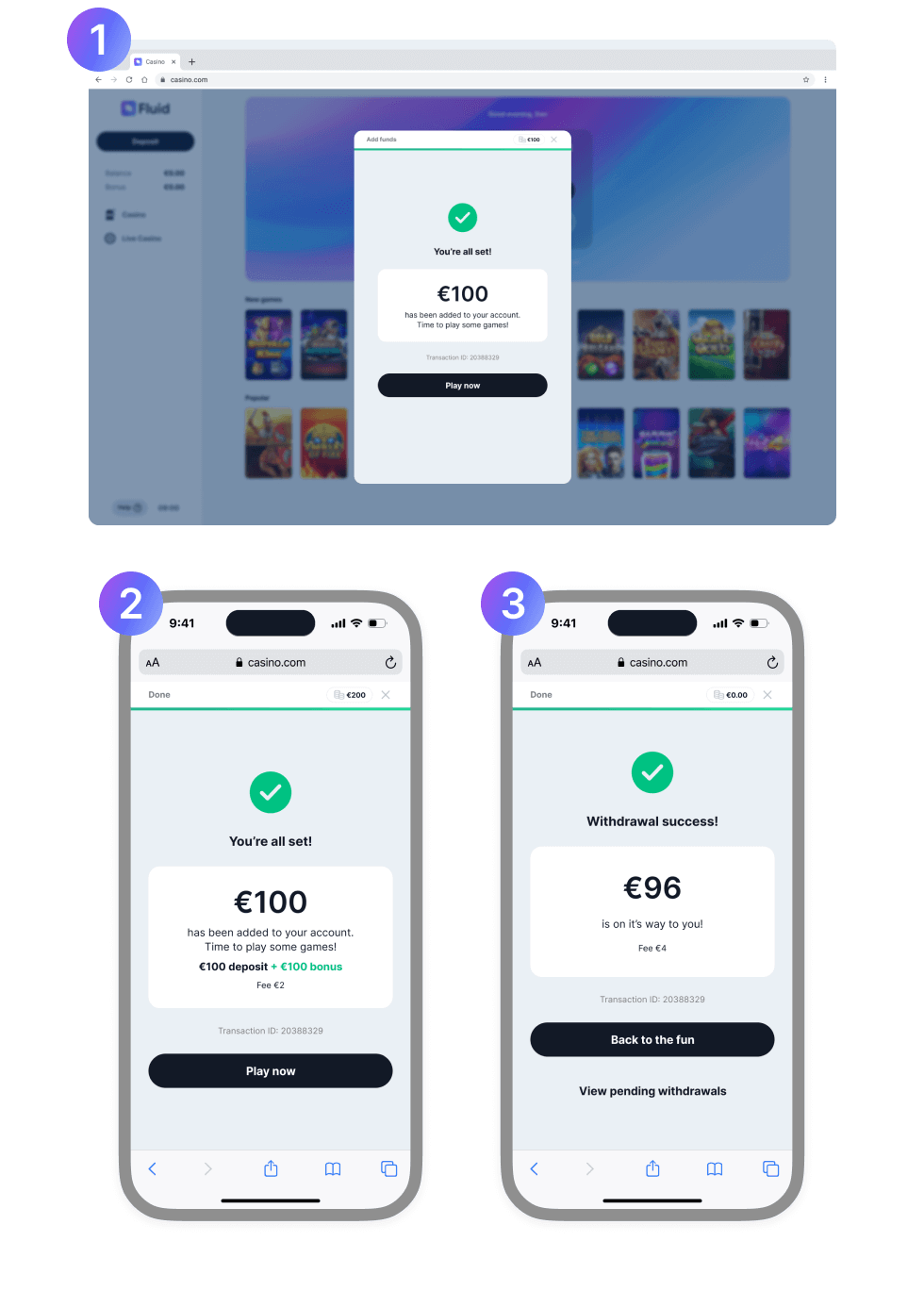
Following a successful transaction, the user is notified in the final step with the amount involved. The exact text displayed on the buttons can be configured by the operator, and the operator can also define what action is performed when the user clicks Play now, e.g. the user may be taken to the home screen of the operator or simply have the wallet close, returning the user to the screen from which the wallet was opened.
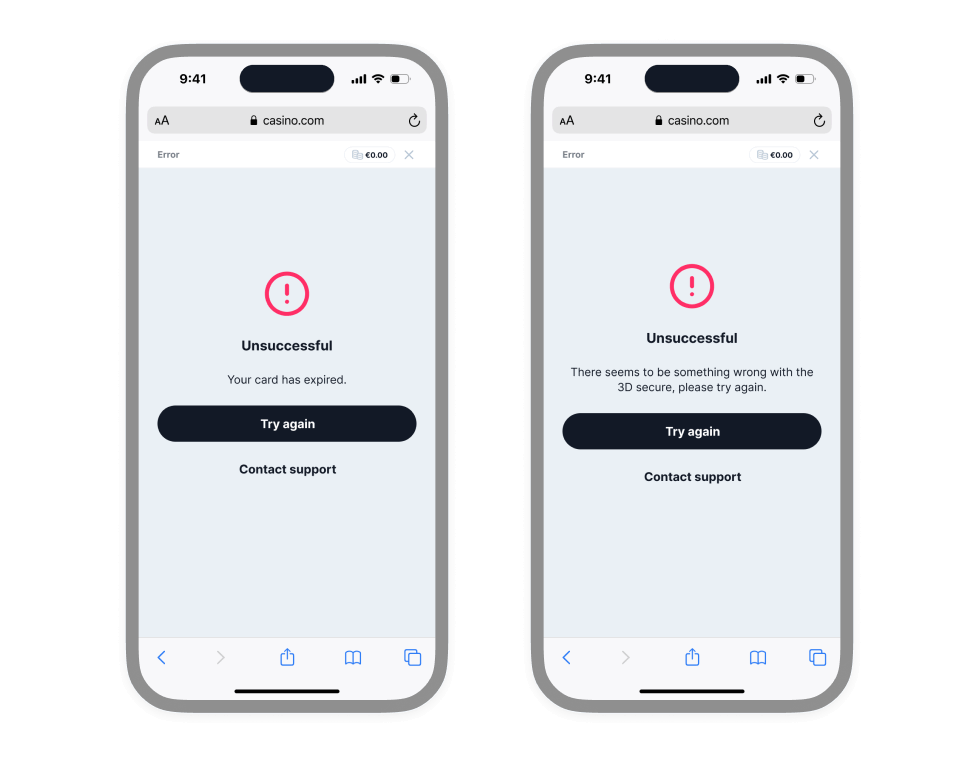
In a similar manner, the buttons Try again and Contact support shown on transaction failure can be configured by the operator.