Payment Method
Fluid provides its customers the facility to create payment methods as required from the Payment Method page.
When a payment method is created, it will be added to the operator’s collection to use when needed.
View Payment Methods
- This tab displays all payment methods in the operator’s collection.
Creating a new Payment Method
- To add a new payment method:
-
Click on the “+ New Record” button in the top right corner. This will open a new page.
-
Populate the fields presented.
- Name* - This field will define the payment method's name the end-users see when they use the wallet.
- Use the locale tabs to provide a name for your payment method (in case the name is different and requires translations).
- This field accepts single-line text input. Both uppercase and lowercase letters are accepted.
- Name (Internal)* - This field is for internal use only and helps distinguish between payment method names from different providers.
- Naming should follow the following format: PROVIDERTYPE_SERVICE-OperatorName.
- Provider Type* - This field will define the transaction type used to set up the payment method in your Payment Orchestration platform. The transaction type in this field should be identical to the one you are using on your platform.
- Service - This field will help you to separate APMs or providers with the same transaction type and in the cashier these methods will be with their own logo and name. (this field can be left empty if you are using only one Transaction Type)
- Logo and Logo Light - This field allows you to upload .svg format logos directly from your computer or the Media library on your Fluid account.
- Logo has to be in SVG format with dimensions 94 x 56
- Terms & Conditions - This field allows you to add single line free text. (for example: interac-trademark)
- Masked account format - The dropdown list lets you determine how much of the stored method details is shown to the user.
- Info - This field is used to display information about the payment method. An “i” icon will be shown next to the payment method when any information is added.
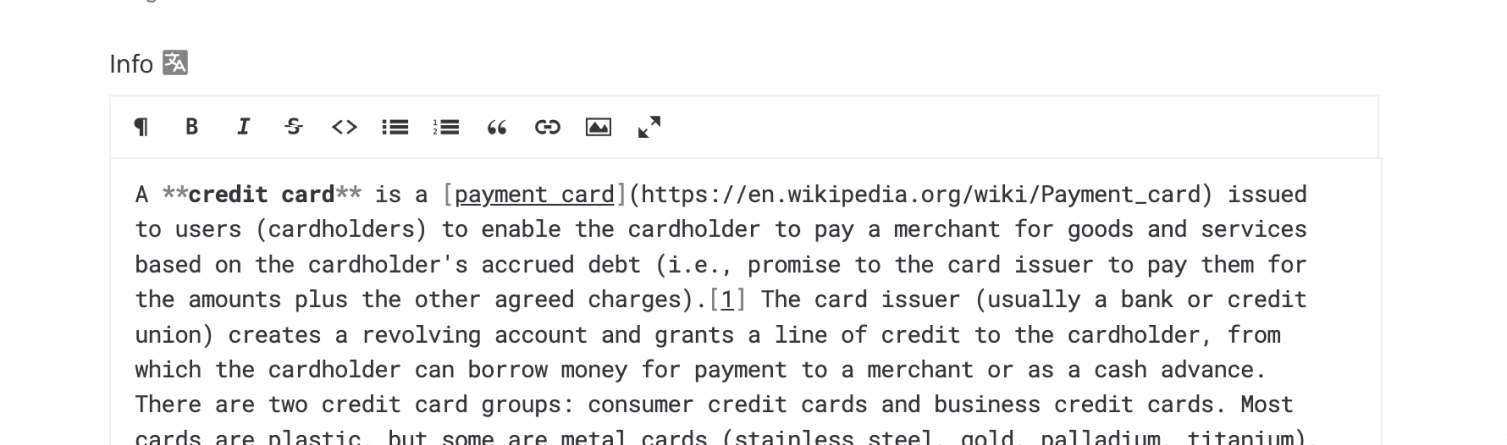
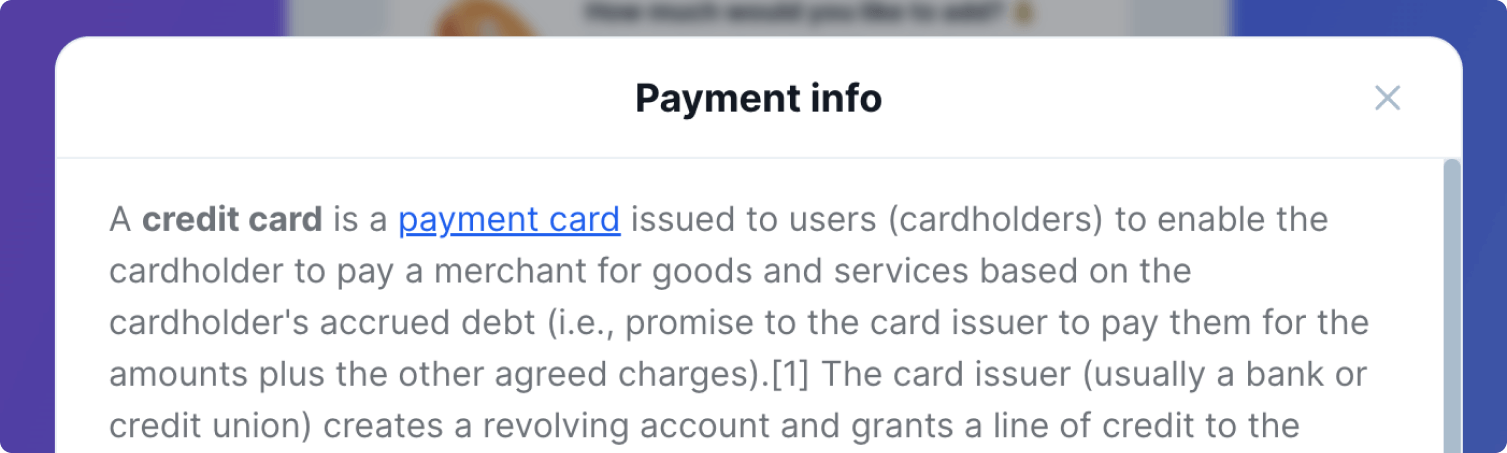
- Auto-Redirect Type - Enables auto-redirect for this method. When enabled, users are automatically redirected (if required) without any manual action. Select the container type (Popup Window or Browser Tab) that matches the method configuration.
- Payment Type* - The dropdown list has 4 selections to choose from.
- EWallet
- BankTransfer
- Crypto
- CreditCard
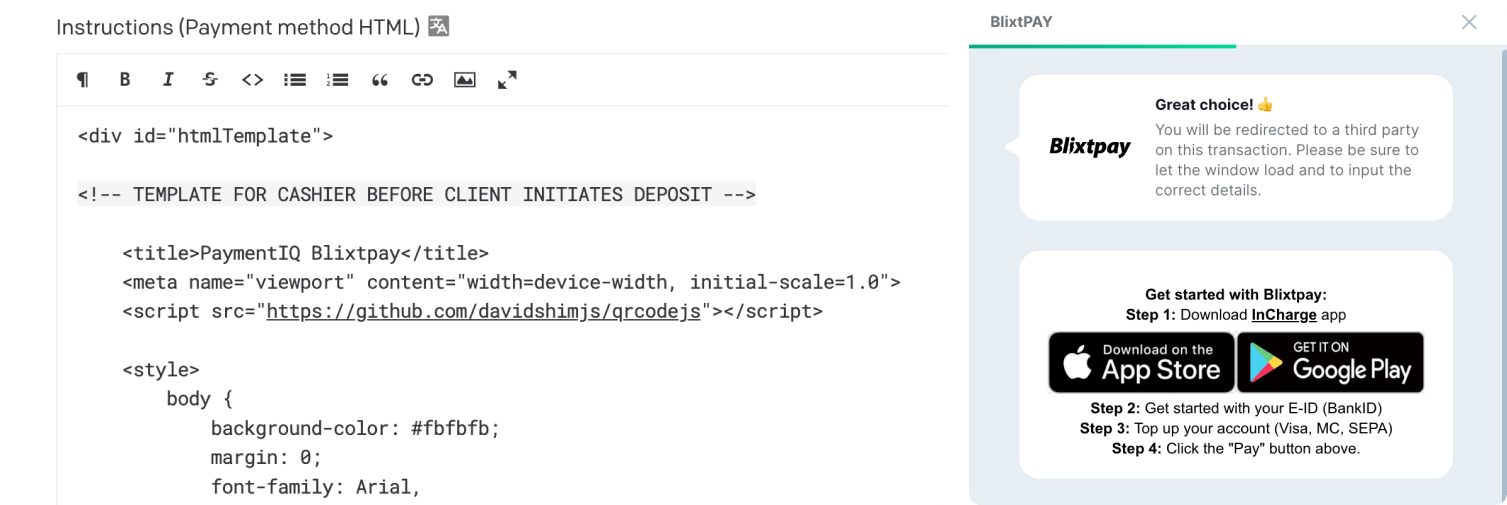
- Deposit Instructions (Payment method HTML) - The field is used to add HTML or Markdown with optional usage instructions shown to players on the deposit details screen for this payment method.
-
Withdrawal Instructions (Payment method HTML) - A separate field for HTML or Markdown instructions shown to players on the withdrawal details screen for this payment method. Leave it empty to show no instructions during withdrawals — it does not fall back to the deposit instructions.
-
Deposit Input Fields - This field is used to specify any additional fields required by the payment method.
Input fields are selected from the 'Library,' and a 'New Input Field' can be added if the Library does not have the desired value. 'Amount' and 'service' do not need to be specified in this section, as they are provided by default as part of the deposit flow.
-
Withdrawal Input Fields - This field is used to specify any additional fields required by the payment method. (same as 'Deposit Input Fields') Please note that the same Payment method entry can be used in case Provider Type & Service are the same for Deposit and Withdrawal. Input fields are selected from the 'Library,' and a 'New Input Field' can be added if the Library does not have the desired value. 'Amount' and 'service' do not need to be specified in this section, as they are provided by default as part of the deposit flow.
-
Deposit Stored method Input Fields - Input fields the player must fill in again when depositing with a method they have already stored. Use it when the provider does not keep every detail of a stored account, for example the coin and network of a stored crypto wallet. Link only the missing fields. When the list is empty, a stored method goes straight to the deposit.
-
Withdrawal Stored method Input Fields - The same, for withdrawals with a stored method. When the list is empty, a stored method skips the details screen and goes straight to the withdrawal confirmation. Leave both lists empty on card methods: a stored card always uses the card form.
-
Payment Limits - Optional per-method deposit and withdrawal limits. The record exposes four numeric fields:
- Min Deposit - Minimum amount a player can deposit using this method.
- Max Deposit - Maximum amount a player can deposit using this method.
- Min Withdrawal - Minimum amount a player can withdraw using this method.
- Max Withdrawal - Maximum amount a player can withdraw using this method.
Each field is optional. A value set here only applies when the payment provider does not return its own limit for the method — provider-supplied limits always win. Leaving a field empty (or setting it to
0) tells Fluid to fall back further to its global default. Use this record to define sensible per-method limits on gateways that don't return their own (for example Payage).
- Name* - This field will define the payment method's name the end-users see when they use the wallet.
-
Attributes marked with * are mandatory.
Edit payment methods in collection
- Locate the payment method which requires editing.
- Click the payment method. The screen with its details will be displayed.
- Edit as necessary.
Delete payment methods from collection
- Locate the payment method to be deleted.
- Click the payment method. The screen with its details will be displayed. Navigate to and click the options menu (3 dots) next to the header, in the top left corner.
- Click “Delete”.
Additional Notes
Save Changes: Always click “Save” after making edits to ensure updates are applied.
Search Tip: Use the Find functionality to quickly find specific payment methods in large collections.
Hosted Fields
For PCI DSS scope reduction, credit-card inputs can be rendered inside iframes hosted by the payment gateway instead of native inputs on the operator's site. When enabled, the raw card data never enters the operator's browser context — only encrypted tokens cross back to the widget.
Enabling hosted fields
- The Hosted Fields Enabled toggle lives on the operator's payment gateway entry (e.g. the operator's connection to PIQ), not on individual payment methods.
- When
On, every credit-card payment method routed through that gateway renders as hosted-field iframes — provided the gateway has a hosted-fields URL configured (set centrally by Fluid for each gateway environment). - When
Off, the widget falls back to the regular client-side encrypted form (or plain text if no encryption is configured on the gateway) for every credit-card method on that gateway. - The flag is per-operator-per-gateway, so an operator can have, for example, all credit cards on PIQ using hosted fields while keeping all credit cards on Payage on the regular form.
- Only affects credit-card payment methods. Non-card payment types (e-wallets, bank transfers, crypto, etc.) ignore the toggle.
What changes for the end user
- Visually, the form looks the same.
- Validation feedback (errors, card brand icon) first appears when the user clicks out of a field. Once an error is showing, it updates live as the user corrects the input — they don't have to click out again to see the error clear.
- The cardholder name input is also moved inside an iframe for consistency, even though the name itself isn't encrypted.
Switching off
Toggling Hosted Fields Enabled back to Off on the operator's gateway entry and saving immediately reverts every credit-card method on that gateway to the regular form on the next request. No widget redeploy.
Methods where the gateway collects the card
The Hosted Fields toggle above covers fields Fluid serves. A few gateways instead collect the card in their own inputs, embedded in the cashier's normal card form: the player sees the usual card step, but the number, expiry and CVV belong to the gateway and the card details never reach Fluid.
Unlike a method that pays on the gateway's own page, this one must have its Payment Type set to Credit Card — that is what routes it to the card step at all. The two arrangements want opposite settings here, so check which one a method is meant to use before changing it.
Nothing else needs configuring per method — and in particular, leave the Hosted Fields toggle alone. It covers fields Fluid serves, not these, and turning it off does not turn these off.
Fluid sets the address those inputs load from, per gateway and environment. A method whose gateway has no usable address disappears from the cashier rather than falling back to the gateway's own payment page: the card step is the only thing this arrangement offers, so there is nothing to fall back to. The gateway's other methods are unaffected. If a card method is missing from the cashier, that address is the first thing to check.
What changes for the end user
- The card step looks like the regular one. The brand icon, the field placeholders and their translations still come from Fluid.
- Theme settings only partly reach these inputs. Colours, text size, placeholder copy and the font family are passed through; the corner radius is not, because the gateway offers only a few fixed corner styles rather than a length. A font family the gateway cannot resolve falls back to its own without warning. The rest of the form is unaffected.
- The three inputs may sit on two rows — number on the first, expiry and CVV on the second. The gateway decides that from the width available to it, and it is not something the theme or the back office controls.
- Validation appears as the player types, and the card brand is detected the same way.
Cards the gateway already holds
Where the gateway collects the card, it also remembers the cards a player has paid with before. Those appear in the cashier as stored methods alongside the player's other saved methods, with no extra configuration. How much of the card number is shown follows the method's Masked account format setting, as it does everywhere else.
Four things are worth knowing before they are reported as faults.
The player is asked for their CVV again. A field for the security code sits beside the stored card, where the cashier asks for it on any other stored card. That is the gateway's requirement for charging a card it holds, not a Fluid setting, and there is no way to switch it off.
Expired cards are not shown. A card stays on offer until the end of its expiry month.
Cards are for purchases only. A stored card is never offered as a place to redeem to, and redemptions on these brands are paid out by bank transfer.
Stored cards can be absent without anything being wrong. A player pays for the first time, the gateway is briefly unreachable, or the brand is not yet set up to read them: in each case the cashier simply offers the normal card step with nothing saved above it. A player who has stored cards on one brand will not see them on another, because the gateway keeps them per brand.
Methods that pay on the gateway's own page
Some gateways collect the payment on a page they host themselves. The player picks the method in the cashier, and the payment step is the gateway's page shown inside the cashier — nothing is typed into a Fluid form, so there are no card inputs, no encryption and no hosted fields involved.
Three settings decide whether such a method works.
Payment Type must not be Credit Card
Set the method's Payment Type to EWallet, even when the page it opens accepts cards. A
Credit Card type tells the widget to prepare an encrypted card form and fetch the gateway's
encryption key first — which a gateway that collects the card on its own page does not have, so
the payment step fails before it opens. The method's name and logo can still say "Card".
Payment Method Gateway Parameters must match
Gateways that publish a list of their available methods are matched automatically. A gateway that has no such list — because its methods are fixed — announces a single method under a known parameter, and the record has to declare the same parameter and value or the method never appears in the cashier at all. Fluid sets that value per gateway; ask if you are unsure which applies.
Transaction Status Check tells the cashier when the payment finished
On the operator's payment gateway entry:
| Setting | Value |
|---|---|
| Transaction Status Check Enabled | On |
| Transaction Status Check Source | Fluid |
| Transaction Status URL | not used in Fluid mode — leave it as it is |
| Transaction Status Check Interval | seconds between checks (3 is a good default) |
Source decides who the cashier asks for the result. Fluid is the right choice here: these gateways report the outcome to Fluid privately, so the cashier has to ask Fluid rather than the gateway. Gateway is for gateways like PaymentIQ that publish a status page the cashier can poll directly — in that mode the URL is required, and leaving it blank turns status checking off for every method on the gateway.
If status checking is left Off, the payment still completes and the player is still credited, but
the cashier never finds out: it stays on the pending screen until the player closes it.
API Host and API Token on the same gateway entry are the credentials for the platform Fluid talks to on the operator's behalf, which is not always the payment gateway itself. When a brand's payments run through a platform that owns the player's account, these are that platform's values. Fluid provides them per brand.
Withdrawal methods on a brand whose platform approves payouts
On some brands a withdrawal is not sent straight out. The platform that owns the player's account holds the request until someone approves it, which can take days, and only then pays it out. The player sees it as pending in the cashier and can cancel it while it waits.
To set up a method:
- Add a Payment Method Gateway Parameter named
paymentId, set to the identifier Fluid provides for that method on the brand. - Add the method to the operator's active list on the Operator Payment Methods tab. The cashier only lists a method the platform offers and the operator has active.
Good to know:
- Without
paymentIdthe withdrawal is refused before it reaches the platform. A wrong value is not caught: the platform refuses it and the player sees a generic failure. - To withhold a method, leave it out of the operator's active list. Do not edit or delete the record, which other operators share.
- Where card payouts are not available, keep card withdrawal methods out of the active list, or the player can pick one that will always be refused.
- Withdrawal limits come from the platform and override the record and operator settings.