

How Fluid Works
A Fluid integration has two halves:
- Frontend — the cashier UI (widgets) that you control through code on your website
- Backend — the payment orchestrator integration, arranged during onboarding with Fluid
This documentation covers the frontend half. The backend half — your platform’s integration with the payment orchestrator for user and session verification and for receiving transaction result notifications — runs directly between your backend and the orchestrator. It is not configured through Fluid and is not covered here.
Transaction flow
Section titled “Transaction flow”The system follows a five-step process:
- User authenticates on your platform. Fluid has no independent login — it relies on your session.
- Fluid loads — the script loads and a widget mounts with the user’s identity attributes. The widget initialises itself against Fluid and emits
initialisedwhen it is ready to open. - User transacts — deposits, withdrawals, or purchases are conducted through the cashier interface. The widget presents payment methods, amounts and bonuses based on the attributes you pass and your operator configuration, and drives the transaction through the payment orchestrator.
- Results return — the orchestrator always delivers the transaction result directly to your backend through the server-to-server notification you set up with it. That is the authoritative channel, and Fluid is not part of it. In parallel, the widget shows the outcome to the user and emits it to your page as events.
- Session ends — upon user logout, the widget is removed from the DOM.
What is configured in code vs. the Back Office
Section titled “What is configured in code vs. the Back Office”A key concept: much of the cashier’s behaviour is managed through Fluid’s Back Office (DatoCMS) rather than code.
Managed in the Back Office
Section titled “Managed in the Back Office”| Area | Back Office feature |
|---|---|
| Translations | All cashier text strings per language via Content Sets |
| Visual design | Colours, icons, and branding through Themes and Campaigns |
| Error handling | Orchestrator error codes mapped to user-facing messages via Errors |
| Payment methods | Availability and behaviour through Operator Payment Methods |
| User input fields | Method-specific data collection via Input Fields |
| Post-transaction promotions | Success screen marketing content via Success Screens |
Access to the Back Office is provided by Fluid during onboarding.
Managed in code
Section titled “Managed in code”| Area | How |
|---|---|
| Widget mounting and lifecycle | HTML attributes and DOM manipulation |
| Session management | session-id, user-id and related attributes |
| Event handling | fluid-info, fluid-error, and fluid-command listeners |
| Data passing | User data, bonus data, virtual currencies via data objects |
| Layout and positioning | CSS and widget placement in your page |
The three widgets
Section titled “The three widgets”Fluid provides three cashier widgets, each suited to a different context. All three are web components that share the same integration model. By default — and in the setup we recommend — the cashier opens as Fluid’s own modal overlay on top of your site; inline embedding is also supported where the experience calls for it. Native apps that wrap your website in a webview integrate exactly like the web.
1. Fluid Cashier
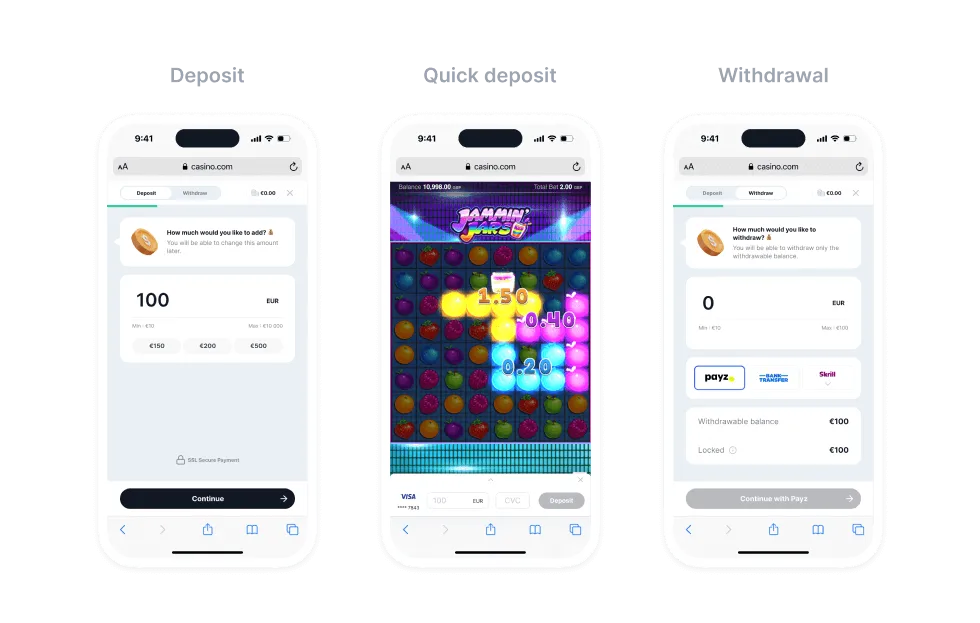
Section titled “1. Fluid Cashier”The full-featured cashier supports three principal user functions: Deposit, Quick Deposit, and Withdrawal.
2. Fluid Quick Deposit
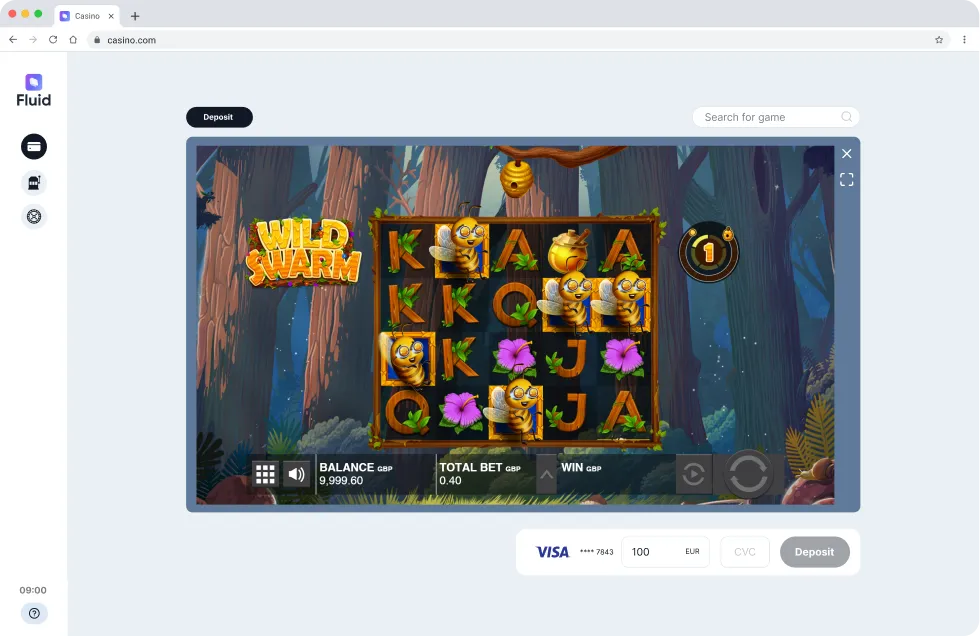
Section titled “2. Fluid Quick Deposit”A simplified version of the cashier enabling single-click deposits using stored payment methods. It is designed for desktop gameplay and embedded inline, respecting its parent element’s styles. If the user has no stored method, it shows a deposit button that notifies your page (deposit-cta-clicked); respond by opening the Fluid Cashier for a regular deposit.
3. Fluid Sweepstakes
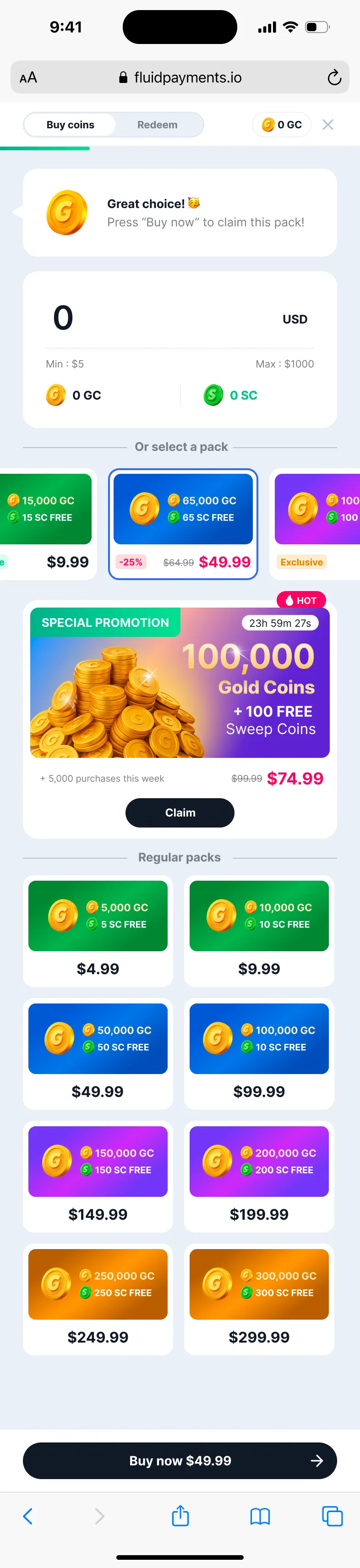
Section titled “3. Fluid Sweepstakes”A dedicated widget for sweepstakes platforms, supporting virtual currency packs and redemption features.
The cashier flows
Section titled “The cashier flows”Deposit
Section titled “Deposit”The deposit flow guides the user through payment method selection, entering details, and confirming a transaction. Payment method order, per-method deposit limits and suggested amounts come from your operator configuration and the data you pass.
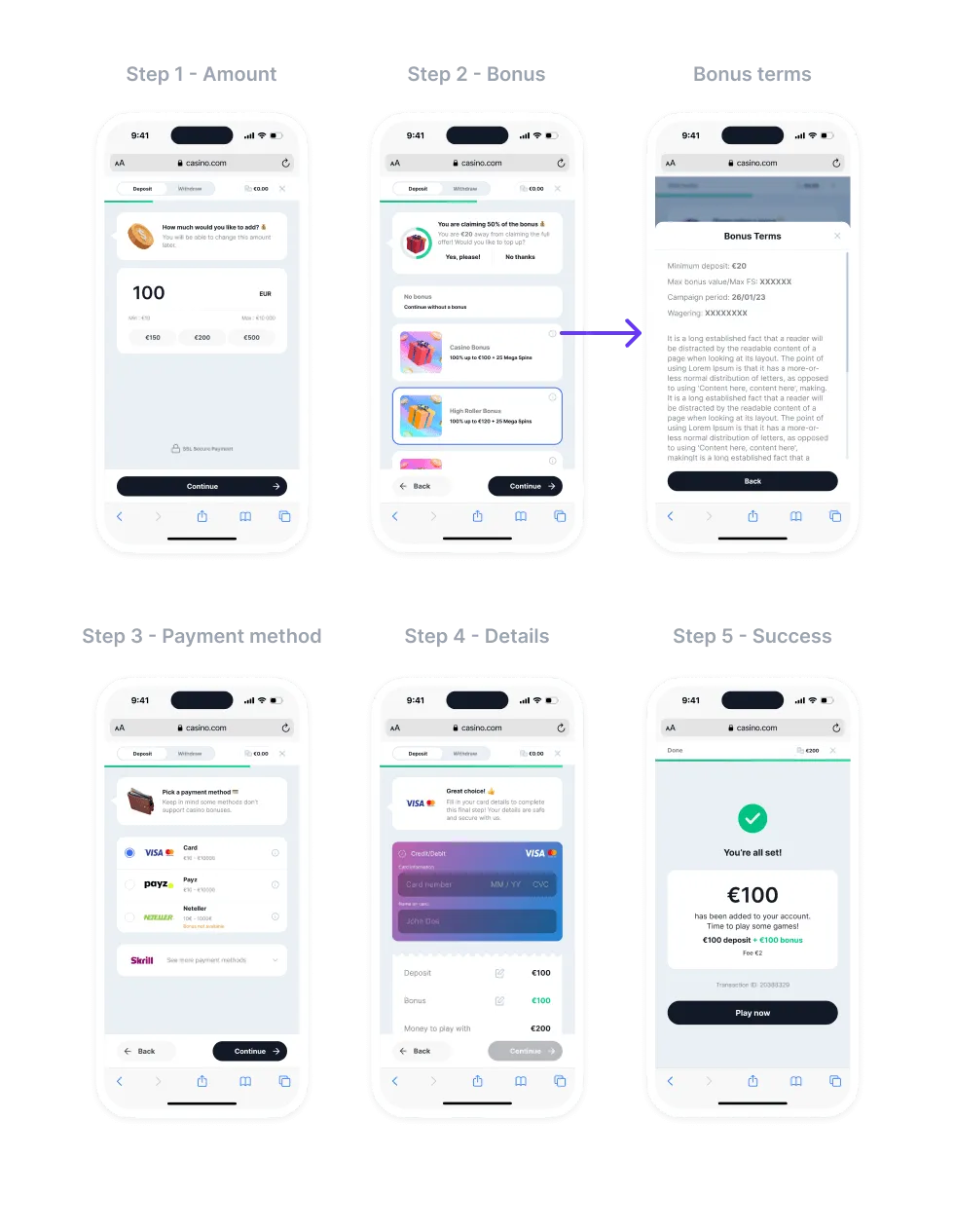 Figure 1 — Example user journey for a deposit
Quick Deposit
Section titled “Quick Deposit”A shortened deposit flow for returning users who have stored payment methods: with a recently used method, entering for example the CVC and an amount is enough. It is available both as a flow of the Fluid Cashier (transaction="quick-deposit") and as the inline Quick Deposit element.
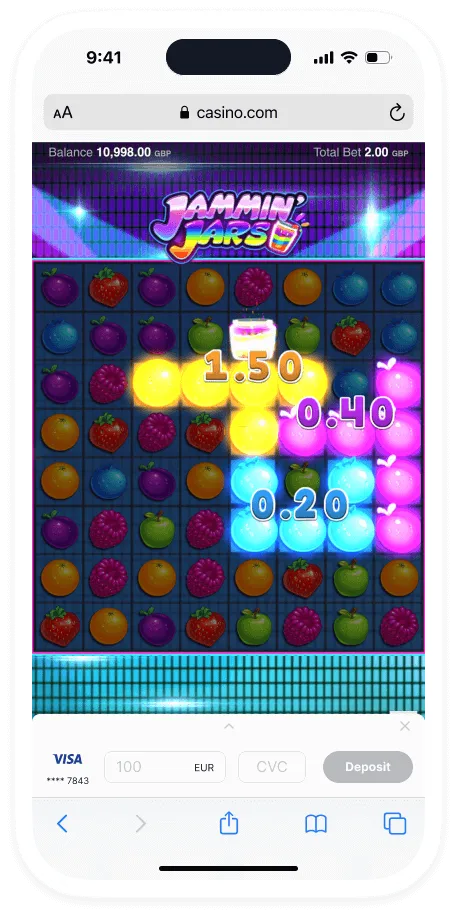 Figure 2 — Quick Deposit: Step 1
Withdrawal
Section titled “Withdrawal”The withdrawal flow lets users withdraw funds up to the withdrawable-balance you pass on the widget.
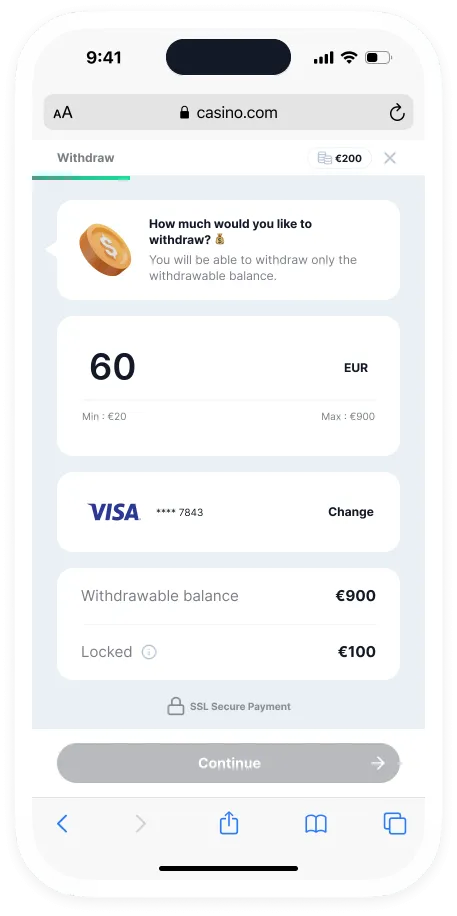 Figure 3 — Withdrawal: Step 1
Supported transaction types
Section titled “Supported transaction types”- Standard deposits with method selection and optional bonuses
- Quick Deposit for returning users with stored payment methods
- Withdrawals up to the
withdrawable-balanceyou pass - Sweepstakes operations (purchase and redeem flows)
- Responsible gaming controls via transaction limits on deposits and withdrawals